.svg)
When you create a user, you assign it an access level.
There are four different access levels for users.
|
Level |
Access |
Notes |
|---|---|---|
|
Admin Access |
The default Admin has complete control over the FileCloud system.
|
The default Admin account is used to manage the FileCloud. The default admin user account is 'admin'. Other users can be marked as 'admins' and given limited set of permissions. Read more about Multiple Admins |
|
Full Access |
Control over its own private cloud storage space in My Files.
|
These user accounts can:
|
|
Guest Access |
Restricted access to the FileCloud system. |
These user accounts:
|
|
External Access |
Access to FileCloud only through a Web browser. |
These user accounts:
|
-
Both Full and Guest users accounts are counted towards user accounts specified in the license.
-
External Access accounts are NOT counted towards the license.
User Types Comparison
|
User Access Feature |
Full Access |
Guest Access |
External Access |
|---|---|---|---|
|
User Portal (Web Browser) Access |
Permitted Fully functional |
Permitted Not all functions available |
Permitted
|
|
View shared files |
Permitted |
Permitted |
Permitted |
|
Authentication |
Local / ActiveDirectory |
Local / ActiveDirectory |
Local Only |
|
Mobile App Access |
Permitted Fully functional |
Permitted Not all functions available |
Not Available |
|
Personal storage in FileCloud |
Available |
Not Available |
Not Available |
|
Share files with other users |
Permitted |
Permitted |
Not Available |
|
Install and use FileCloud Desktop, FileCloud Sync, and FileCloud Drive |
Permitted |
Permitted |
Not Available |
|
Sync storage using Cloud Sync |
Permitted |
Permitted |
Not Available |
|
SSO Login |
Permitted |
Permitted |
Not Available |
|
Group Membership |
Can be member of any group |
Can be member of any group |
Can be member of any group except Everyone. |
|
Admin Account |
Can be Admin Account |
Can be Admin Account |
Cannot be an Admin Account |
|
Team Folders |
Permitted |
Permitted |
Permitted |
|
Automation App |
Permitted |
Permitted |
Not Available |
|
File and Folder Comments |
Permitted |
Permitted |
Not Available |
|
MFA |
Permitted |
Permitted |
Available by license beginning in Version 20.2 for Enterprise Advanced customers. |
Checking User Access Level
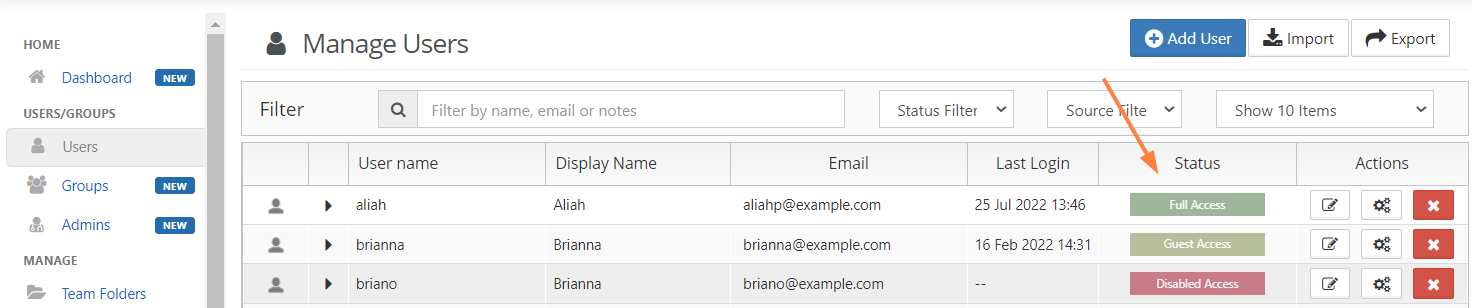
The access level of any user account can be checked by the Administrator using the admin portal.
To check a user's access level:
-
Log on to Administration Portal.
-
Click Manage Users in the navigation panel.
-
In Filter, enter the name or the email of user
-
The Access for the user will be listed in the Status column.