.svg)
When Auth Type is set to AD or LDAP, the admin password cannot be changed using the procedure on this page, but must be changed in the AD or LDAP server by the AD or LDAP admin. See User Authentication Settings.
Reset the main admin password in the Admin settings screen
Reset in admin settings...
This setting can only be used to reset the main admin password. It cannot be used to change promoted admin passwords.
-
In the FileCloud admin portal's left navigation bar, scroll down and click Settings. Then, on the Settings navigation page, click Admin

The Admin settings page opens. -
Click Reset Admin Password.
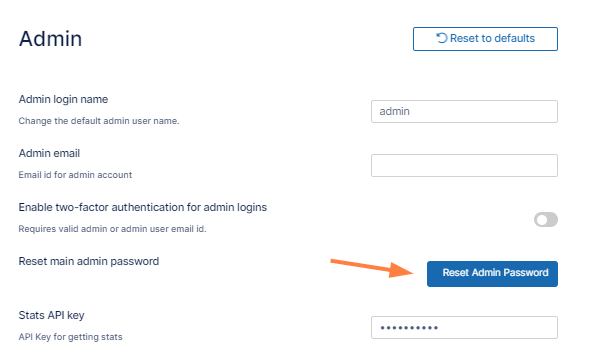
A Reset Admin Password dialog box opens.
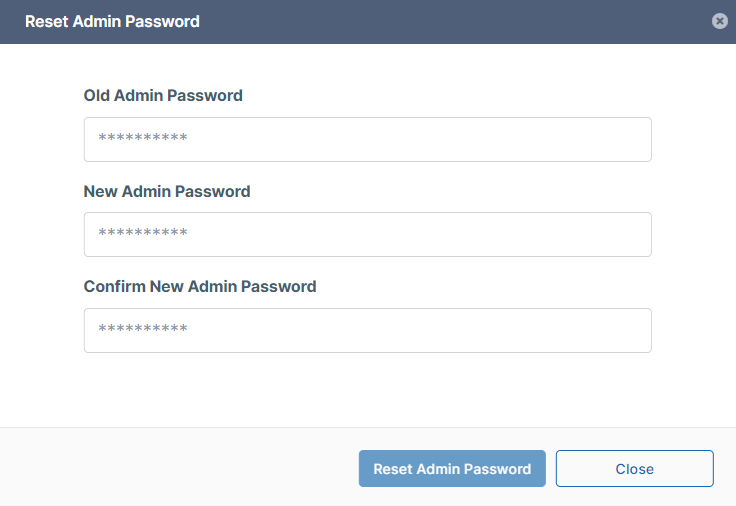
-
Enter the old and new password values, and click Reset Admin Password.
Reset a forgotten admin password from the login screen
Reset from login screen...
This method can be used to reset the main admin password as well as user admin passwords.
-
On the admin portal login screen click Forgot Password.
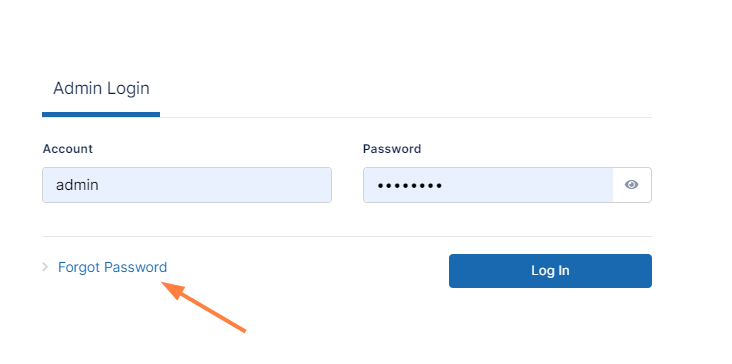
A dialog box prompts you to enter your user account. -
Enter your admin account name, and click Reset Password.
Note: To reset their passwords, promoted admin users must use the user portal.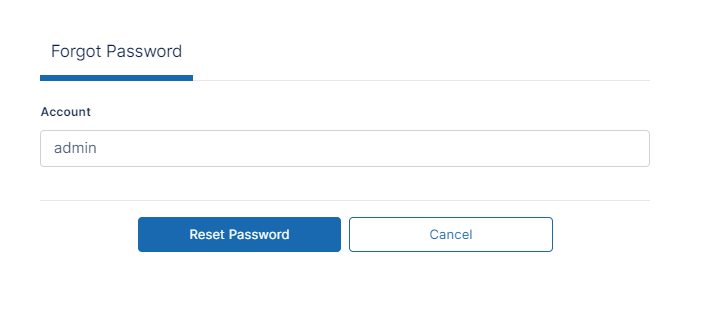
A message appears, telling you to check your email for a message.
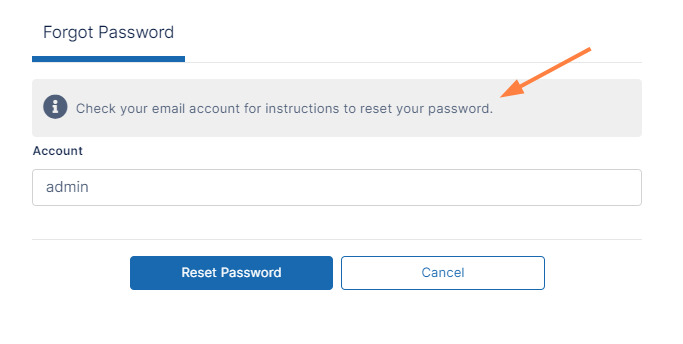
-
Find and open the message in your email.
The message appears as: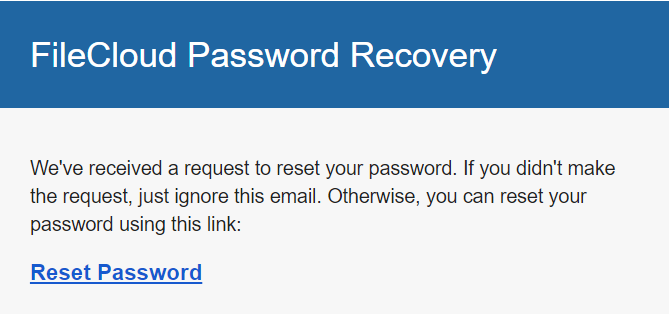
-
Click Reset Password.
The following dialog box opens: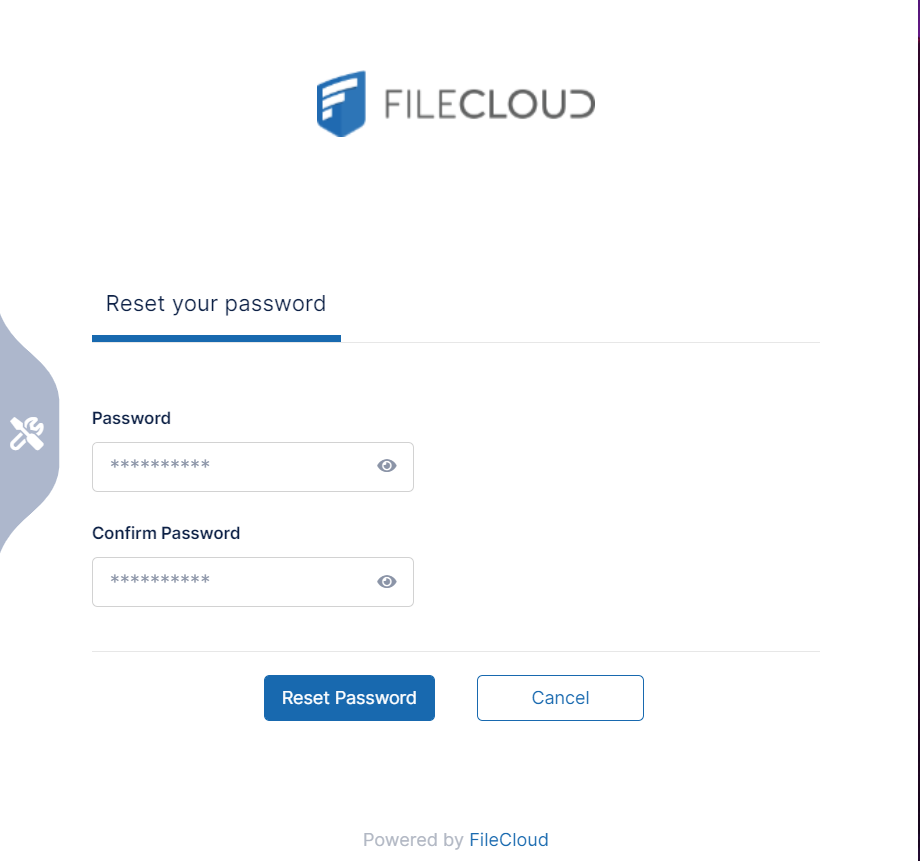
-
In Password, enter your new password. In Confirm Password enter it again.
-
Click Reset Password.
Your password is reset.