.svg)
If you are upgrading from version 23.241 or earlier use the following upgrade notes.
The current version of FileCloud is FIPS 140-3 compliant when running in FIPS mode on Ubuntu Pro 22.04.
Prior to upgrade, confirm that your SSL certificate and your SSL private key are in the correct directory:
Ubuntu: /etc/apache2/ssl
RHEL: /etc/httpd/ssl
See Install an SSL Certificate on Linux.
If you are running FileCloud in a high availability environment, to upgrade to the latest version, please Contact FileCloud Support.
FileCloud Support can help you upgrade or can provide a PDF with instructions if you would like to perform the upgrade without assistance.
Pre-upgrade
-
As always, make a full backup of your existing installation before upgrading.
Backup FileCloud on Linux -
If you are running in a high-availability environment with separate MongoDB servers, upgrade to MongoDB version 8 if you have not upgraded already. Please Contact FileCloud Support if you need more information.
-
If you initially installed FileCloud before version 23.242
AND
You have not upgraded to FileCloud version 23.261.1 or 23.261.2
You must change your MongoDB Feature Compatibility Version from 6.0 to 7.0 by running the applicable command below, or MongoDB will not start.If MongoDB authentication is not enabled:
mongosh --eval 'db.adminCommand({setFeatureCompatibilityVersion: "7.0"})'
If MongoDB authentication is enabled:
(Replace PASSWORD with your MongoDB admin password)mongosh -u admin -p 'PASSWORD' --authenticationDatabase admin \ --eval 'db.adminCommand({setFeatureCompatibilityVersion: "7.0"})'
After you run one of the above commands, verify that the current Feature Compatibility Version is 7.0 by running the following command and checking the value it returns:
mongosh --quiet --eval 'db.adminCommand({getParameter:1,featureCompatibilityVersion:1})' -
Please check all of the following conditions and see if any apply to the version you are updating from. For any that apply to you, take the specified step.
-
If you are running FileCloud in a high availability or multi-server environment, verify that the MongoDB feature compatibility version is set to version 6. If not, set MongoDB feature compatibility to version 6 by following the instructions at https://www.mongodb.com/docs/manual/reference/command/setFeatureCompatibilityVersion/ or contacting FileCloud support.
-
If your installation of FileCloud uses admin portal user access restrictions, please see Restricting Access To Admin UI Based On IP Addresses for updated instructions.
-
If you are running a version below 23.1 and have granular folder permissions set, please contact FileCloud Support before upgrading to avoid share and file access issues.
Changes in functionality will significantly impact the way existing share behavior works when you upgrade. -
If your system uses WebDAV, please contact FileCloud Support before upgrading.
Upgrading to the current version completely disables WebDAV functionality. -
If your SSL certificate key is less than 2048 bits in length, generate a new SSL certificate key of at least 2048 bits. For information, please Contact FileCloud Support (note that FileCloud support does not provide or generate certificates for customers).
-
If you have enabled managed store encryption, and you have not yet changed your encryption from RC4, which has been deprecated, to AES256:
Follow the steps below under https://fileclouddocs.atlassian.net/wiki/spaces/FH/pages/118390786/Linux+Upgrading+Versions+23.251+to+the+Latest+Version#Instructions-for-systems-with-managed-storage-encryption-enabled
-
If you are using Ubuntu 18.04/20.04, CentOS 7/RHEL 7 and RHEL 8, please migrate to Ubuntu 22.04 LTS or RHEL 9.
-
If you are updating from a version prior to 23.241, to enable access to FileCloud, redownload and reinstall your license. See Install the FileCloud License for help.
-
If you are using native LDAP for authentication and using non-TLS connections, set the LDAP Host value to ldap://hostname. Older FileCloud versions supported host value without the protocol definition ldap://
-
Upgrade to the latest supported Version of MongoDB Version 7.
If your CPU does not have the AVX instruction set, MongoDB 7 (and MongoDB 6) will not run.
To check whether your CPU has the instruction set, run:
#lscpu | grep -i avx"
If you do not have the AVX instruction set, install one of the select Intel and AMD processors.
-
If your system uses custom API services, follow the instructions below this list under https://fileclouddocs.atlassian.net/wiki/spaces/FH/pages/118390786/Linux+Upgrading+Versions+23.251+to+the+Latest+Version#If-you-are-upgrading-to-the-latest-version-and-you-are-using-custom-API-services
-
If your system uses ServerLink, follow the instructions below this list under https://fileclouddocs.atlassian.net/wiki/spaces/FH/pages/118390786/Linux+Upgrading+Versions+23.251+to+the+Latest+Version#Upgrading-systems-that-use-ServerLink
-
If you use an AD attribute other than mail, follow the steps below this list underhttps://fileclouddocs.atlassian.net/wiki/spaces/FH/pages/118390786/Linux+Upgrading+Versions+23.251+to+the+Latest+Version#Correcting-the-AD-mail-attribute .
-
Upgrade instructions
Upgrading FileCloud from 23.232.x and higher to the latest version
To upgrade FileCloud from 23.232.x and higher to the latest version in Linux see Upgrade FileCloud on Linux .
Upgrading FileCloud from 22.1 to Ubuntu 22.04 and RHEL 9
You can either re-install FileCloud or upgrade both FileCloud and your operating system.
Option 1: Install one of the supported operating systems, then Install the latest version of FileCloud on the newly installed operating system, and then migrate FileCloud to the newly installed operating system. This is the recommended option.
Option 2: Perform a FileCloud upgrade which requires OS upgrades to Ubuntu 22.04 or RHEL 9.x, For this procedure, please Contact FileCloud Support.
Please note that FileCloud Support cannot resolve OS upgrade problems.
Upgrading FileCloud from versions lower than 22.1
If you are upgrading from a version of FileCloud lower than 22.1 or from an operating system below Ubuntu 22.04 LTS or RHEL 9, please install one of the supported operating systems, then Install the latest version of FileCloud on the newly installed operating system, and then migrate FileCloud to the newly installed operating system.
Post Upgrade
-
The folder ../scratch/tmp is not recreated in FileCloud, causing the system to fail to save necessary short-term data. After FileCloud is upgraded, add the folder /var/www/html/scratch/tmp to avoid any issues.
-
If you are running in a high availability or multi-server environment manually set the MongoDB feature compatibility version to version 7. Use the instructions at https://www.mongodb.com/docs/manual/reference/command/setFeatureCompatibilityVersion/ or contact FileCloud support.
-
Beginning with version 23.252, a new group, Externals, automatically includes all External users, and the Everyone group does not include External users. External users who were include in the Everyone group in earlier versions of FileCloud are no longer included in it.
The Externals group functions to prevent External users from having the same share, folder, and policy access as users in the Everyone group.
Previously created DLP rules that denied access to the Everyone group will now deny access to both the Everyone and Externals groups. Previously created DLP rules that allowed access to the Everyone group will continue to allow access to the Everyone group and not to the Externals group.
If your use cases require that external users have the same access to files and folders as other users, you can give the Externals group the same permissions as the Everyone group by running the tool assignexternalsgroup.php. See Assign the Externals Group the Same File Access as the Everyone Group for help.
-
Beginning in FileCloud 23.253, by default, a more granular dynamic content security policy replaces the existing content security policy in the .htaccess file. If you are upgrading, to make this change effective, you must make a small change to the Content-Security-Policy header in the .htaccess file:
-
Open the .htaccess file.
in Windows:
C:\xampp\htdocs\.htaccessin Linux:
/var/www/html/.htaccess -
Find the line that begins:
Header set Content-Security-Policy: -
Change set to setifempty:
Header setifempty Content-Security-Policy: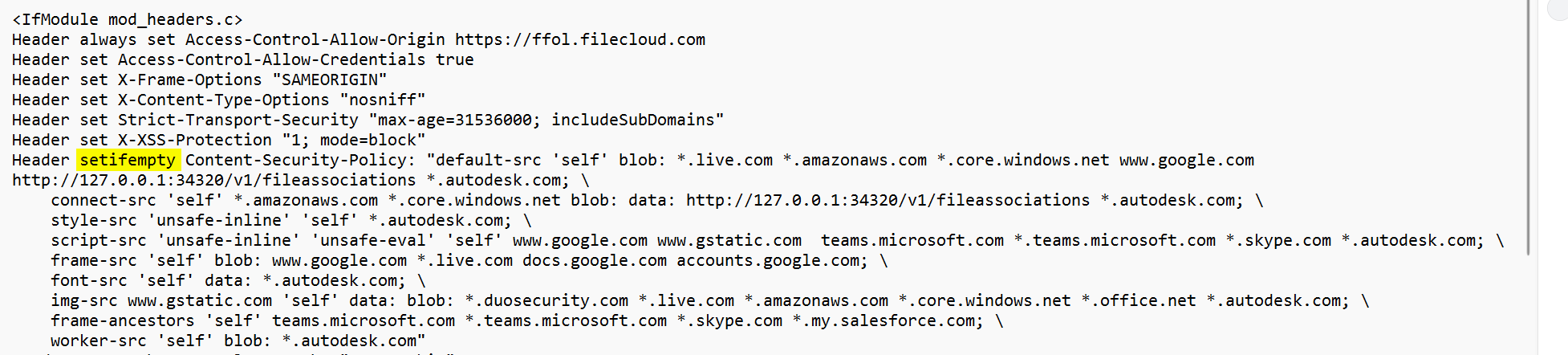
-
-
If you are upgrading FileCloud from a version below 23.241 and your system uses SSO, follow the instructions below in https://fileclouddocs.atlassian.net/wiki/spaces/FH/pages/118390786/Linux+Upgrading+Versions+23.251+to+the+Latest+Version#Configuring-SSO-after-updating-from-a-version-older-than-23.241
This is necessary because Version 23.241.x of FileCloud dropped support for Shibboleth 1.3 and SAML 1.1, and updated SimpleSAML to version 2.x. -
If you plan to update to the new FileCloud Outlook Add-in, follow the instructions below inhttps://fileclouddocs.atlassian.net/wiki/spaces/FH/pages/118390786/Linux+Upgrading+Versions+23.251+to+the+Latest+Version#Upgrade-instructions-for-the-FileCloud-23.242-Outlook-Add-in
-
If you are upgrading from a version prior to 23.1 or upgrading on a system running with MongoDB replica set or standalone MongoDB follow the instructions below in https://fileclouddocs.atlassian.net/wiki/spaces/FH/pages/118390786/Linux+Upgrading+Versions+23.251+to+the+Latest+Version#FC-Push-Service-Configuration .
-
Beginning with FileCloud Server version 23.261, iOS users must be on iOS 16+ and app version 23.261+.