.svg)
If you are running FileCloud in a high availability environment, to upgrade to the latest version, please Contact FileCloud Support.
FileCloud Support can help you upgrade or can provide a PDF with instructions if you would like to perform the upgrade without assistance.
Pre-upgrade
-
As always, make a full backup of your existing installation before upgrading.
Backup on Windows -
If you are running in a high-availability environment with separate MongoDB servers, upgrade to MongoDB version 8 if you have not upgraded already. Please Contact FileCloud Support if you need more information.
-
If your system uses ServerLink, perform the following steps:
-
Before upgrade, ensure all ServerLink nodes are fully synced and are at the same state.
-
Make backups of all nodes as needed.
-
Stop the FileCloud ServerLink client service in secondary nodes.
-
Upgrade the primary node first.
-
Upgrade each secondary node after upgrading the primary node.
-
Start the FileCloud ServerLink client service in secondary nodes. (In HA setups, client service must run only in one of the servers from each secondary node.)
-
Note: All connected ServerLink nodes, both primary and secondary, must be upgraded to the same ServerLink version before enabling access to the site again.
-
If your system uses MongoDB authentication or a custom IP binding, follow the steps at Disable MongoDB Authentication and IP Binding.
Upgrade instructions
The current version of the Windows Update Tool is 23.253.0.9154, which is effective for installing FileCloud Version 23.262.
-
Before running the upgrade tool, confirm that each of your FileCloud services is running and that your storage is in a READY state.
-
Use the Windows Upgrade tool to do a full upgrade. (You cannot upgrade using the admin portal.)
The folder ..\scratch\tmp is not recreated in FileCloud, causing the system to fail to save necessary short-term data. After FileCloud is upgraded, but prior to restarting each of the nodes in the FileCloud Control Panel, add the folder
C:\xampp\htdocs\scratch\tmpto avoid any issues.
Upgrade using Update Tool (Windows Only) -
For all upgrades, once upgrade is complete, refresh the browser using CTRL-F5 to clear any prior setup information from the cache.
Post Upgrade
Upgrade Windows environments using Solr and Solr+OCR
-
Upgrade FileCloud
-
Set JAVA_HOME to the new version's path.
-
Log in to the FileCloud admin portal.
-
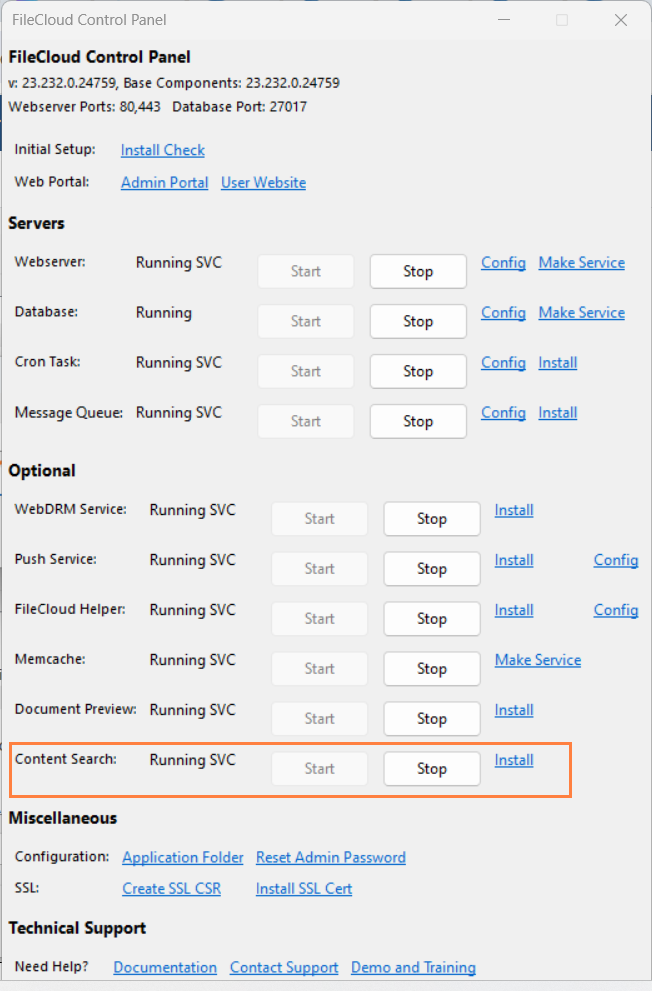
In the FileCloud Control Panel, and stop and restart Content Search.
FileCloud iOS mobile users
Beginning with FileCloud Server version 23.261, iOS users must be on iOS 16+ and app version 23.261+.