.svg)
To ensure that your connection to Signority works properly, if you are using a firewall or blocking public connections, please allow requests from 52.60.130.76, Signority's IP address.
Integrate FileCloud with Signority
The first time you access the eSignature screen you are required to either obtain a trial Signority account through FileCloud or enter the credentials for your existing Signority account
To enable eSignature:
-
Install and run FileCloud Document Converter if it is not running already. For help, see FileCloud Document Converter.
-
Go to the eSignature page.
The first time you access this page, it appears as: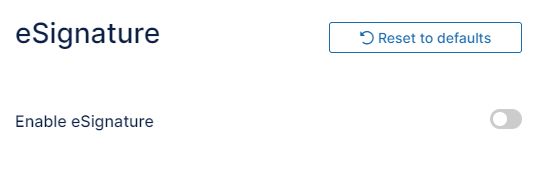
-
Toggle on the Enable eSignature switch.
By default eSignature is set up to use Signority.
Fields for creating a trial Signority Account appear along with the link Connect your account for users who already have accounts.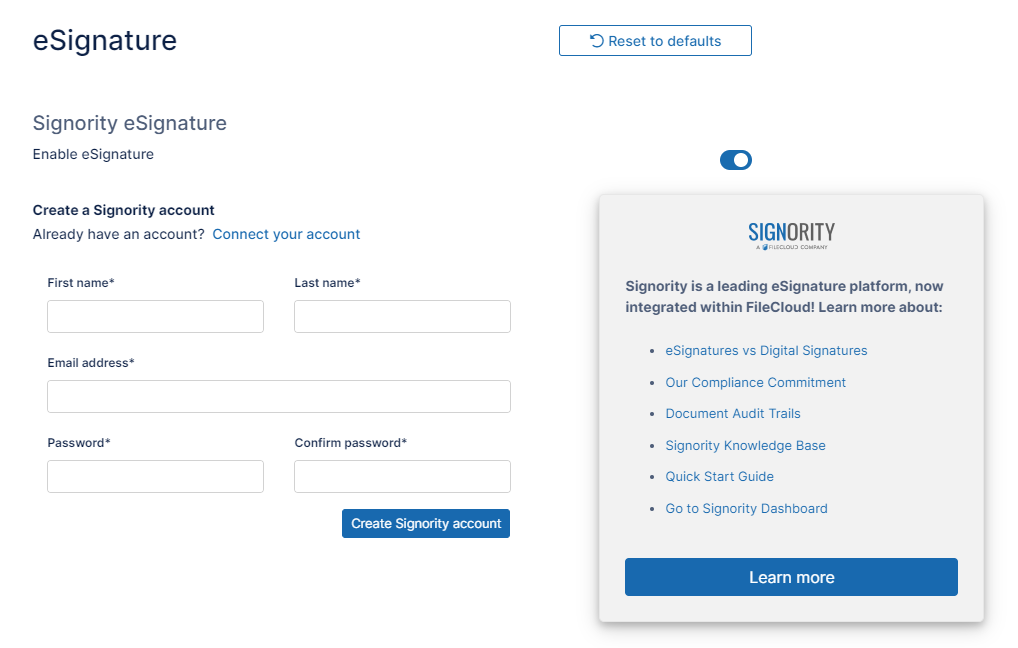
-
To create a trial Signority account:
-
Enter the information requested, and click Create Signority Account.
Password must be longer than 6 characters and cannot use common words or character strings stored in a predefined dictionary.Note: It is recommended that passwords:
-
contain one uppercase letter, one lowercase letter, one number, one special character
-
have a length of 8 - 20 characters
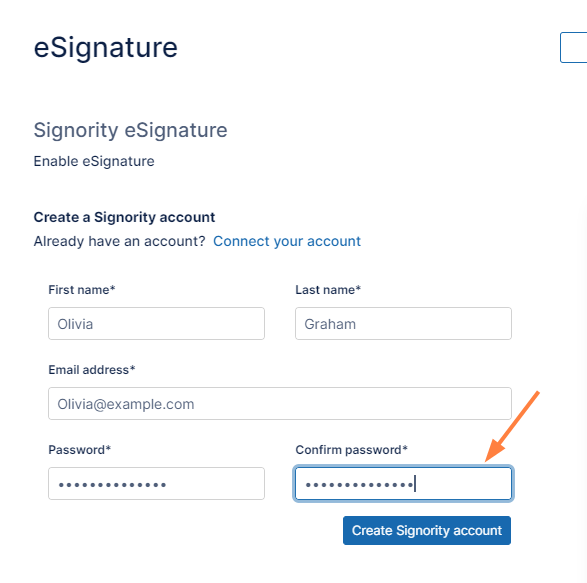
Your Signority account is created. The screen now appears as follows, with Enable eSignature checked and your API Key automatically filled in.
-
-
Click Test to make sure integration with Signority works correctly.
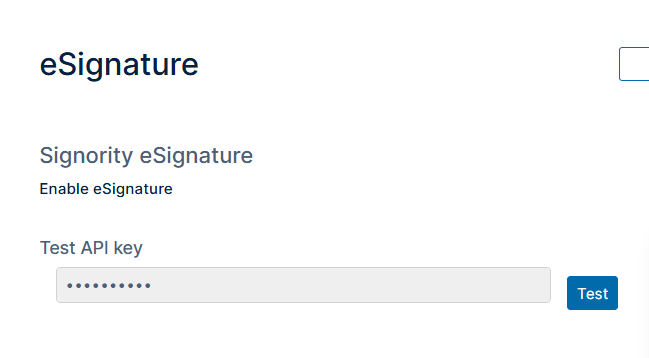
If the test returns a success message, FileCloud integration with Signority is complete, and your users are now able to obtain eSignatures on files.
The trial account lasts for 90 days. You are sent notifications prior to expiration reminding you that before the trial expires, you must purchase a paid account to maintain eSignature capability.
If you haven't purchased a paid account by the time your trial account expires, any documents already sent for eSignature can still be signed and processed; however, no new documents can be sent for eSignatures.
To convert a Signority account from trial to paid
The eSignature screen includes a Signority box that keeps count of the days remaining in your trial account and gives you links for viewing Signority account plans or contacting Signority sales:
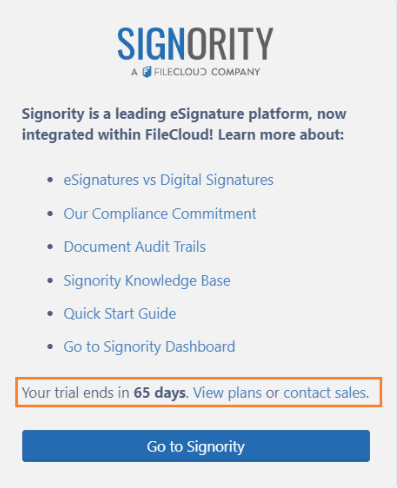
Click contact sales to proceed with your Signority license purchase.
If you already have a Signority account:
-
Click Connect your account.
-
Enter your email address and password into the corresponding fields, and click Connect Account.
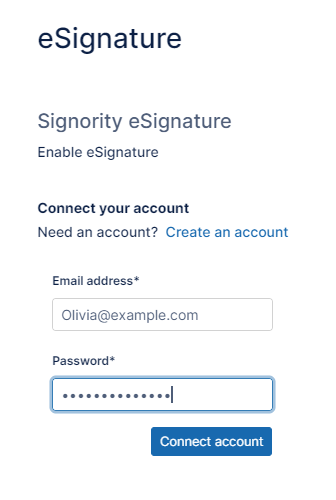
The screen now appears as follows, with Enable eSignature checked and your API Key automatically filled in.
-
Click Test to make sure integration with Signority works correctly.
If the test returns a success message, FileCloud integration with Signority is complete, and your users are now able to obtain eSignatures on files.
For information about the eSignature process for users, see eSignature Requests.