.svg)
To ensure that your connection to Signit works properly, if you are using a firewall or blocking public connections, please allow requests from 141.147.129.79, Signit's IP address.
To integrate FileCloud with Signit:
-
If you do not already have a Signit account, create one at https://signit.sa/en.
-
Log in to your Signit account, and create an application for your integration with FileCloud in your Signit API dashboard.
-
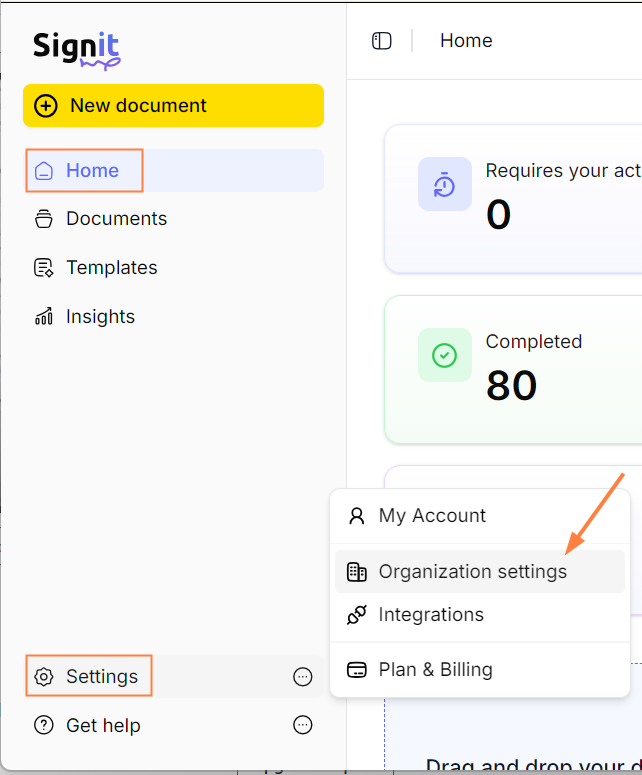
In your Signit dashboard, go to Home > Settings > Organization settings.
-
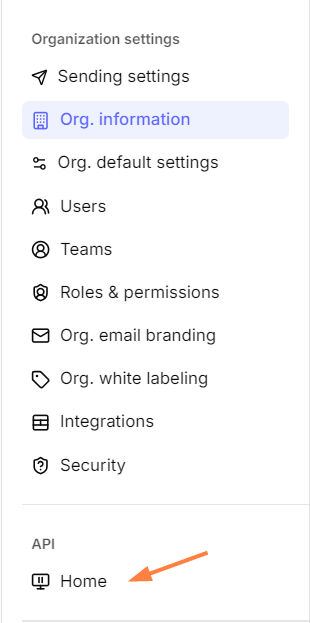
In the Organization Settings navigation bar, under API, click Home.
-
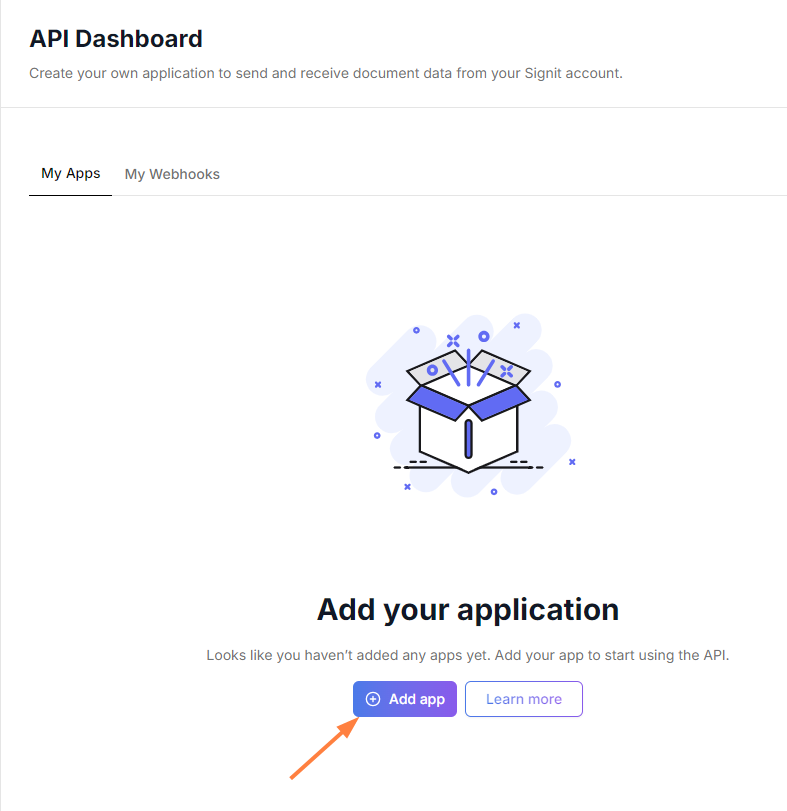
In the My Apps tab, click Add app.
-
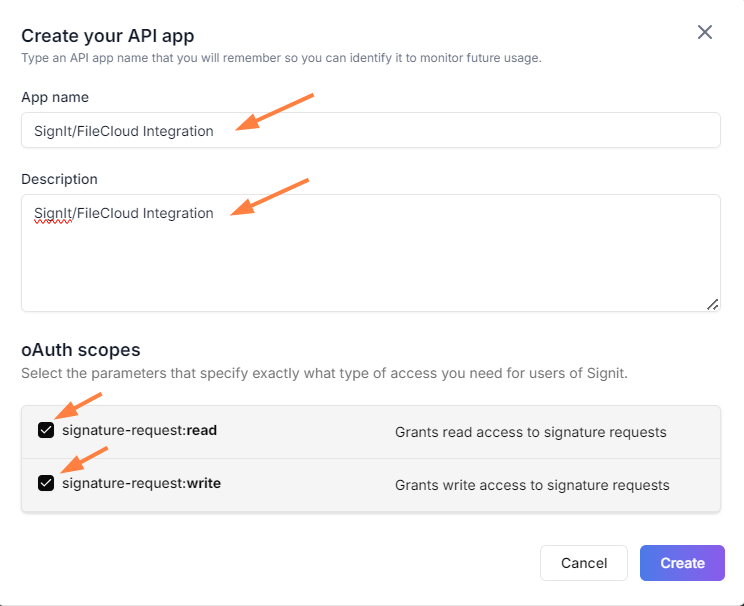
In the Create your API app dialog box, enter values for App name and Description, and check signature-request:read and signature-request write.
-
Click Create.
The dialog box displays your Client ID and Client secret. It is important that you save these because you will need them to configure the settings for integration in FileCloud.
Note: You will not be able to retrieve the Client secret if you do not save it now.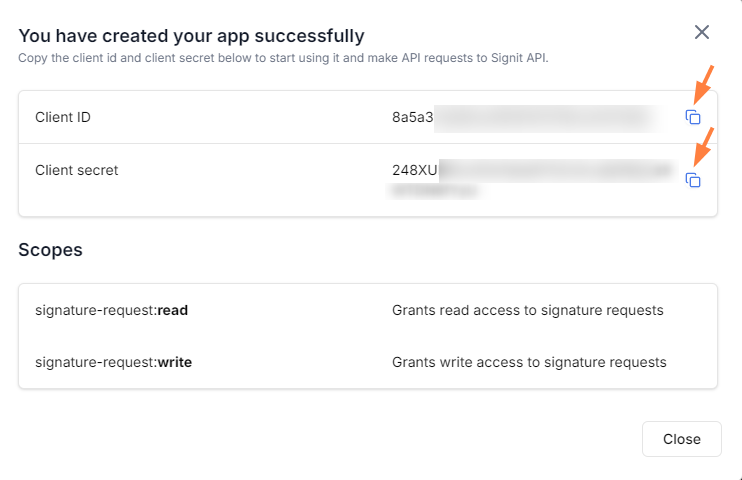
-
Click Close. The app is now listed under My Apps
-
-
Log in to the FileCloud admin portal and set up integration with Signit.
-
In FileCloud, go to Settings > Third Party Integrations > eSignature.
The first time you access this page, it appears as: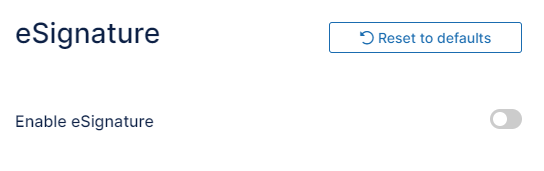
-
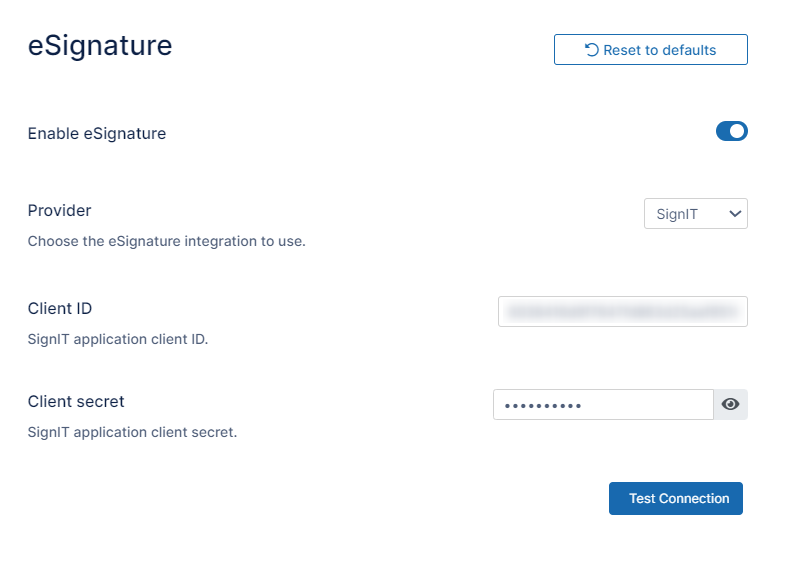
Toggle on the Enable eSignature switch.
By default eSignature is set up to use Signority. -
In the Provider drop-down list, choose Signit.
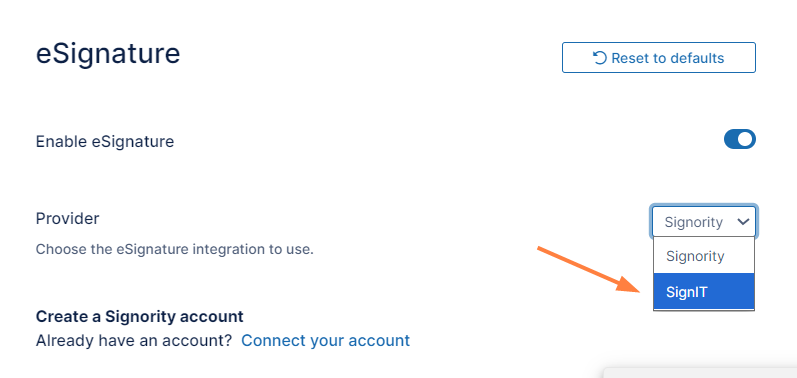
Now the fields for Signit integration are shown. -
In Client ID, enter the Client ID from your Signit application.
-
In Client Secret, enter the Client Secret from your Signit application.
-
Click Test Connection to confirm that the integration is successful.
-
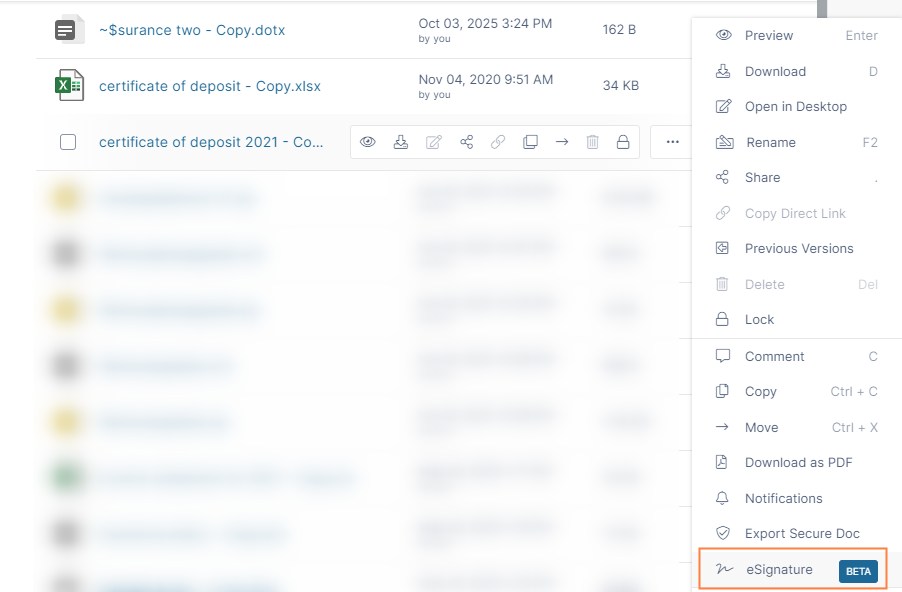
Integration of FileCloud and Signit is now complete. In FileCloud, when users click the More icon in the row for a file, the eSignature option appears: