.svg)
The current version of FileCloud runs FIPS mode using FIPS 140-3, which does not support encrypted managed storage on RHEL9. If you are planning to use FileCloud on RHEL9 in FIPS mode, please Contact FileCloud Support .
If you are running FileCloud in a high availability environment, to upgrade to the latest version, please Contact FileCloud Support.
FileCloud Support can help you upgrade or can provide a PDF with instructions if you would like to perform the upgrade without assistance.
Pre-upgrade
-
As always, make a full backup of your existing installation before upgrading.
Backup on Linux -
If you are using native LDAP for authentication and using non-TLS connections set the LDAP Host value to ldap://hostname. Older FileCloud versions supported host value without the protocol definition ldap://
-
Beginning in FileCloud 23.253, by default, a more granular dynamic content security policy replaces the existing content security policy in the .htaccess file. If you are upgrading, to make this change effective, you must make a small change to the Content-Security-Policy header in the .htaccess file:
-
Open the .htaccess file.
in Windows:
C:\xampp\htdocs\.htaccessin Linux:
/var/www/html/.htaccess -
Find the line that begins:
Header set Content-Security-Policy: -
Change set to setifempty:
Header setifempty Content-Security-Policy: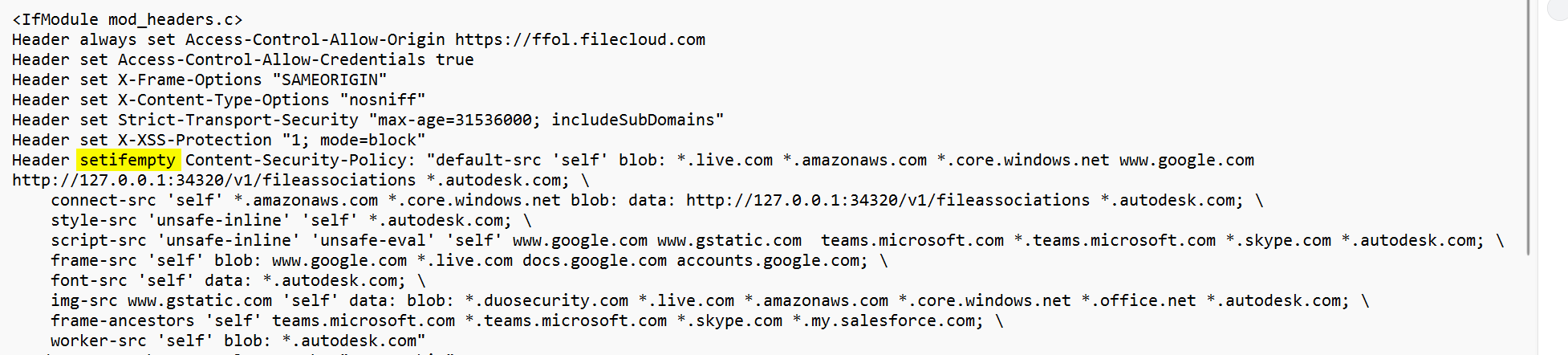
-
-
If you have added custom rules to the .htaccess file, they will be overridden by the dynamic CSP feature. To solve this:
Either:
Disable the dynamic CSP feature with the setting TONIDOCLOUD_DYNAMIC_CSP_ENABLED. See Dynamic CSP in FileCloud.Or:
Add the custom rules to the setting TONIDOCLOUD_DYNAMIC_CSP_EXTEND.To add the custom rules:
-
On the FileCloud Server, open the cloudconfig file:
In Windows:
C:\xampp\htdocs\config\cloudconfig.phpIn Linux:
/var/www/html/config/cloudconfig.php
-
Add the setting in the format:
define("TONIDOCLOUD_DYNAMIC_CSP_EXTEND",directive:source,source;[directive:source,source;]);
for example:
define("TONIDOCLOUD_DYNAMIC_CSP_EXTEND", "script-src:amazon.com;worker-src:amazon.com,google.com;");
-
-
Beginning with version 23.252, a new group, Externals, automatically includes all External users, and the Everyone group does not include External users. External users who were include in the Everyone group in earlier versions of FileCloud are no longer included in it.
The Externals group functions to prevent External users from having the same share, folder, and policy access as users in the Everyone group.
Previously created DLP rules that denied access to the Everyone group will now deny access to both the Everyone and Externals groups. Previously created DLP rules that allowed access to the Everyone group will continue to allow access to the Everyone group and not to the Externals group.
If your use cases require that external users have the same access to files and folders as other users, you can give the Externals group the same permissions as the Everyone group by running the tool assignexternalsgroup.php. See Assign the Externals Group the Same File Access as the Everyone Group for help. -
If your system uses ServerLink, follow these steps:
-
Before upgrade, ensure all ServerLink nodes are fully synced and are at the same state.
-
Make backups of all nodes as needed.
-
Stop the FileCloud ServerLink client service in secondary nodes.
-
Upgrade the primary node first.
-
Upgrade each secondary node after upgrading the primary node.
-
Start the FileCloud ServerLink client service in secondary nodes. (In HA setups, client service must run only in one of the servers from each secondary node.)
-
Note: All connected ServerLink nodes, both primary and secondary, must be upgraded to the same ServerLink version before enabling access to the site again.
-
If you have installed the Network Share Scanner in a previous version, you are required to make some changes to the associated configuration files:
-
In /opt/fceventapi/config.yaml
-
If you see the line data_path: data, delete it.
-
If the field orchestrator is not set to etcd, change it to etcd:
orchestrator: etcd
-
-
In /opt/fcnetworksharescanner/maestro-config.yaml
-
If you did not make changes to maestro-config.yaml previously:
Replace the content of maestro-config.yaml with the content of maestro-config.dist.yaml. -
If you made changes to maestro-config.yaml previously:
Add the changes to maestro-config.dist.yaml, then remove maestro-config.yaml.
Rename maestro-config.dist.yaml to maestro-config.yaml.
-
-
In /opt/fcnetworker/networker-config.yaml
-
If you did not make changes to networker-config.yaml previously:
Replace the content of networker-config.yaml with the content of networker-config.dist.yaml. -
If you made changes to networker-config.yaml previously:
Add the changes to networker-config.dist.yaml, then remove networker-config.yaml.
Rename networker-config.dist.yaml to networker-config.yaml.
-
-
Upgrade instructions
-
To upgrade FileCloud from 23.251 to the latest version in Linux see Upgrade FileCloud on Linux. (You cannot upgrade using the Admin Portal.)
Post-upgrade
FileCloud iOS mobile users
After you upgrade to FileCloud 23.261, to use FileCloud, iOS mobile users must upgrade to iOS 16+ and FileCloud 23.261.