.svg)
As of FileCloud 23.252, support for installation with Linode has ended; now, you must install a Windows or Ubuntu server in Linode to install FileCloud or FileCloud Community Edition.
For simple installation on a Linode, you can install FileCloud Community Edition with Linode One-Click Apps.
Deploy a FileCloud One-Click App
Linode’s One-Click App Marketplace allows you to easily deploy software on a Linode using the Linode Cloud Manager. To access Linode’s One-Click App Marketplace:
-
Log in to your Linode Cloud Manager account.
-
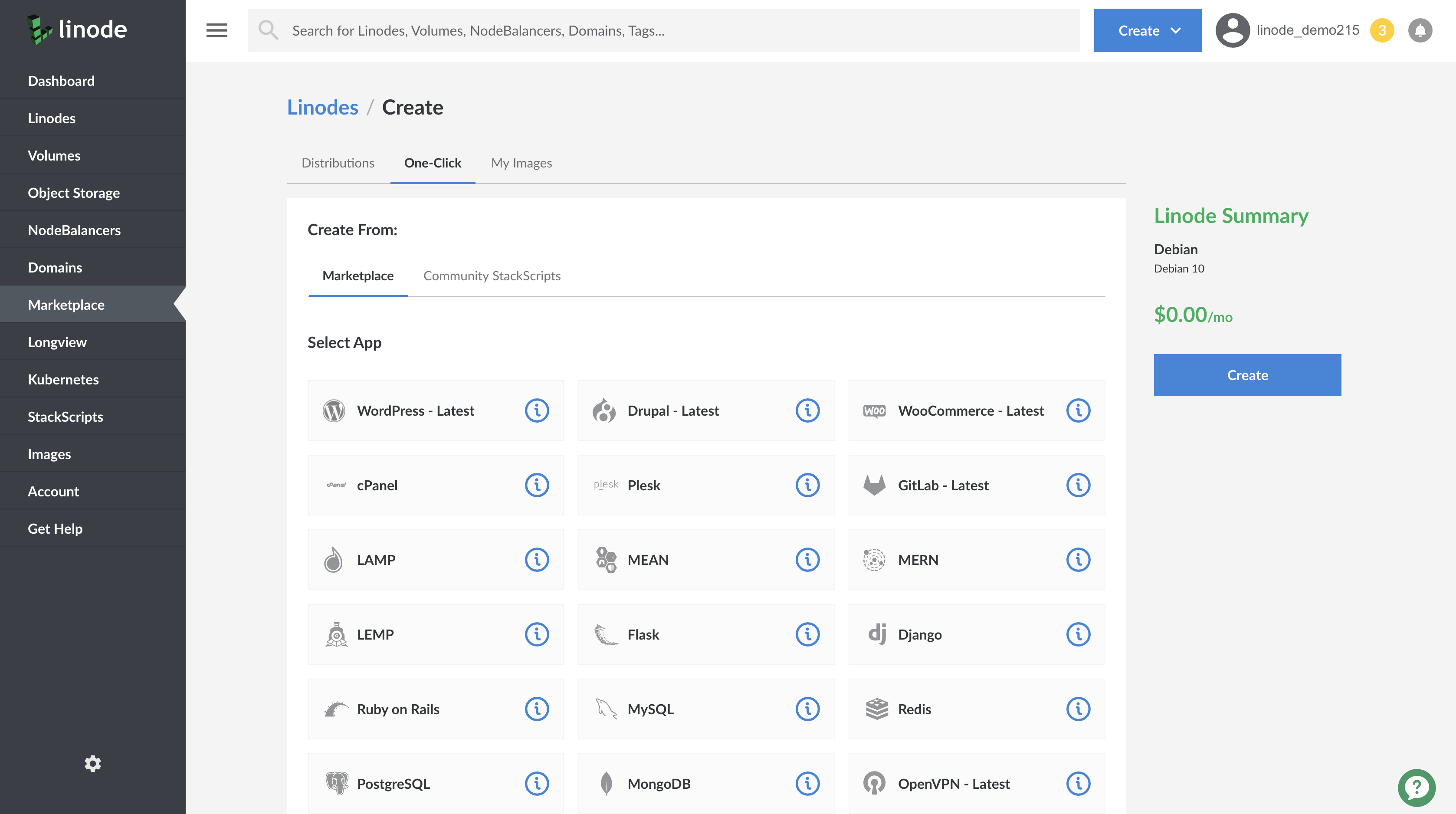
From the Linode dashboard, click on the Marketplace button in the left-hand navigation menu.
-
The Linode creation page appears, with the One-Click and Marketplace tabs pre-selected.
-
Under the Select App section, select FileCloud Community
-
Once you have selected the FileCloud Community app, proceed to the Options section and provide values for the required fields.
FileCloud Options
You can configure your FileCloud Community installation by providing values for the following fields:
|
Field |
Description |
|---|---|
|
FileCloud Admin Password |
The password for Admin User login. Required. |
Linode Options
After providing the app specific options, provide configurations for your Linode server:
|
Configuration |
Description |
|---|---|
|
Select an Image |
Select any one from all of the images supported. Required. |
|
Region |
The region where you would like your Linode to reside. In general, it’s best to choose the location that’s closest to you. Required. |
|
Linode Plan |
Your Linode’s hardware resources. For a small number of users, a 2GB Standard Linode is sufficient. If you decide that you need more or fewer hardware resources after you deploy your app, you can always resize your Linode to a different plan. Required. |
|
Linode Label |
The name for your Linode, which must be unique between all the Linodes on your account. This name will be how you identify your server in the Cloud Manager’s Dashboard. Required. |
|
Root Password |
The primary administrative password for your Linode instance. This password must be provided when you log in to your Linode via SSH. It must be at least 6 characters long and contain characters from two of the following categories: lowercase and uppercase case letters, numbers, and punctuation characters. Your root password can be used to perform any action on your server, so make it long, complex, and unique. Required. |
When you’ve provided all required Linode Options, click on the Create button. Your FileCloud app will complete installation anywhere between 5-10 minutes after your Linode has finished provisioning.
For additional help, see Deploy FileCloud through the Linode Marketplace.
Access Your FileCloud Admin Portal
Once FileCloud Community Edition is installed, you can access the FileCloud admin portal by navigating to "http://<Linode-IP>/admin" where <Linode-IP> is your Linode’s IPv4 address:
-
Once you have accessed your admin portal via the browser, you can log in using the credentials you previously specified in the FileCloud Admin Password field when you deployed the app.
-
Then you should proceed to download and install the license for FileCloud Community Edition.